Introduction
Veracity evaluates traffic from your adverts to detect bot activity and provide suppression of bots in your digital campaigns. To enable us to do this, you will need to make some small changes to current and future digital ads; these changes depend on which ad networks you are running ads on.
Changes required for Google Ads
Veracity uses the Final URL Suffix for Google Ads. This can be used in conjunction with UTM Parameters to populate your Veracity account with the correct names from your campaigns.
Hierarchy in Google Ads
Google ads are hierarchical, in practice this means you can have settings at the Account level that filter all the way down through the campaign and ad group to the ad level.
And also that any settings at the ad level override the the settings at the ad group level and so on up.
Tracking Templates at the Campaign Level
In Google Ads, Campaign URL settings are found in campaign settings under “Additional settings” and Campaign URL Options.
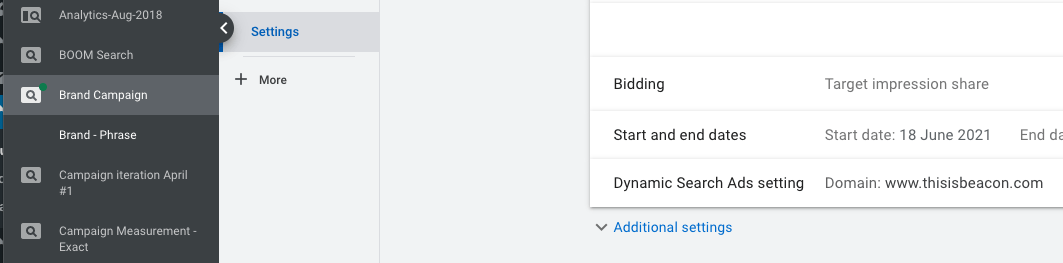

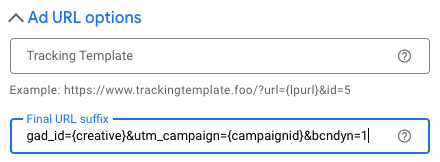
These are the settings for Search, Display and other campaign types.
gad_id={creative}&utm_campaign={campaignid}&bcndyn=1
These are the settings for Shopping campaigns.
shad_id={creative}&utm_campaign={campaignid}&bcndyn=1
These are the settings for Performance Max campaigns.
pad_id={campaignid}&utm_campaign={campaignid}&bcndyn=1
{campaignid} will be dynamically replaced with the names of your campaigns by the Veracity app.
If you already have tracking templates or UTM parameters in place Veracity can be made to work in conjunction with any existing settings. For instance if you are already using “utm_campaign=MyCampaign” then do not use “utm_campaign={campaignid}” as well.
Do not forget to test (using the blue Test link) to ensure that no errors have occurred.
Still need help?
Contact your Veracity account manager or email support@vtn.live.